
iOS App Icon Generator
Create professional ios app icon generator icons with AI in seconds
No credit card required
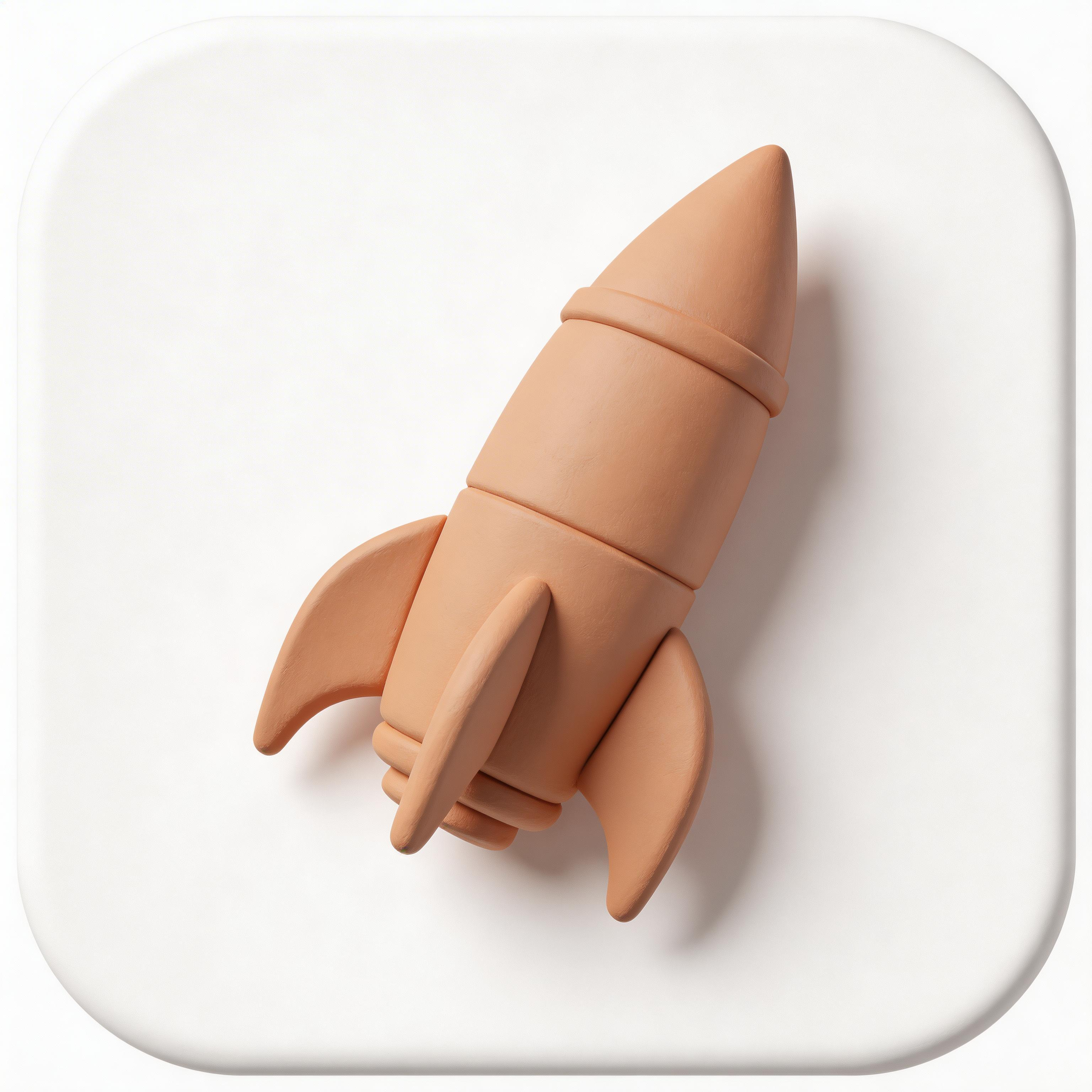
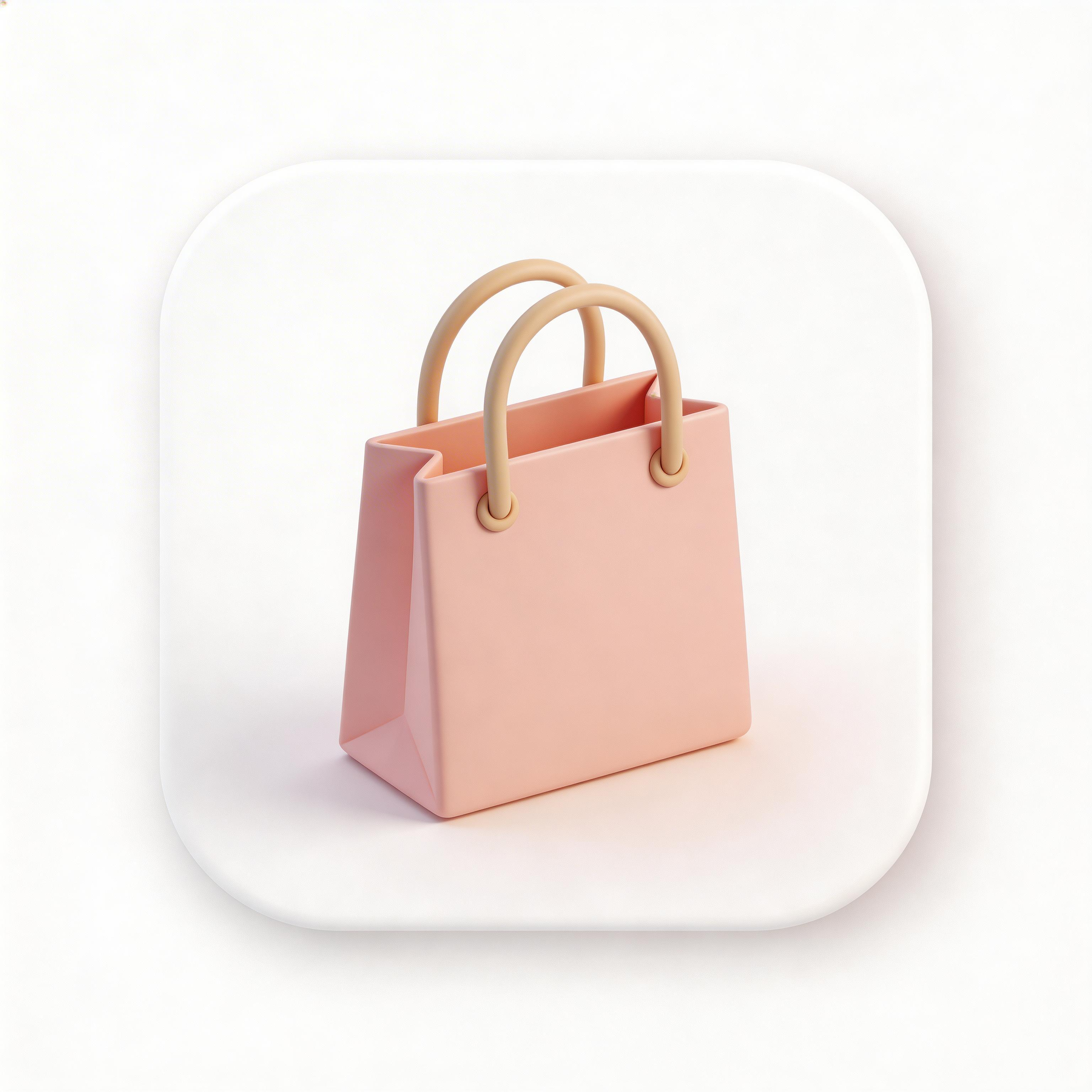
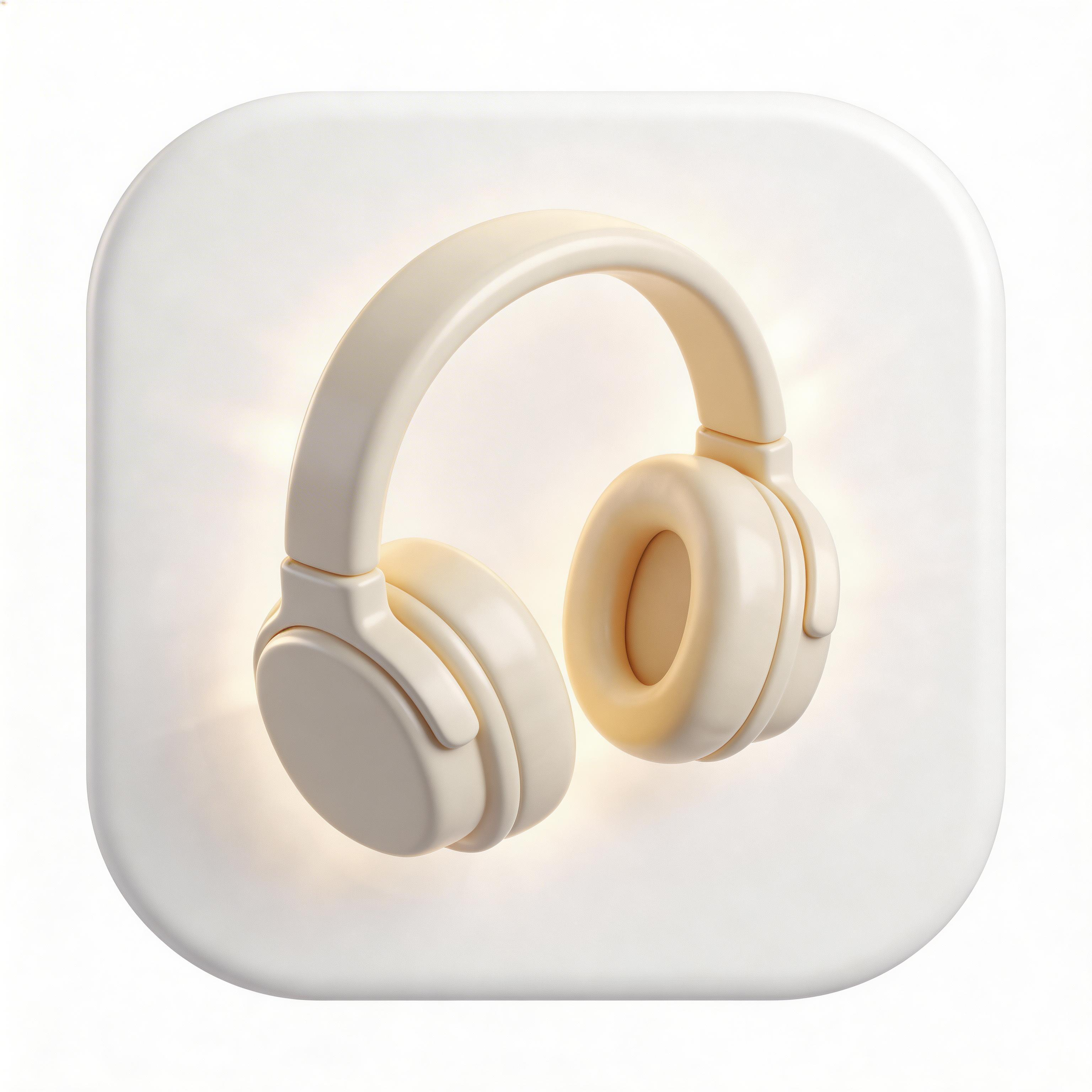
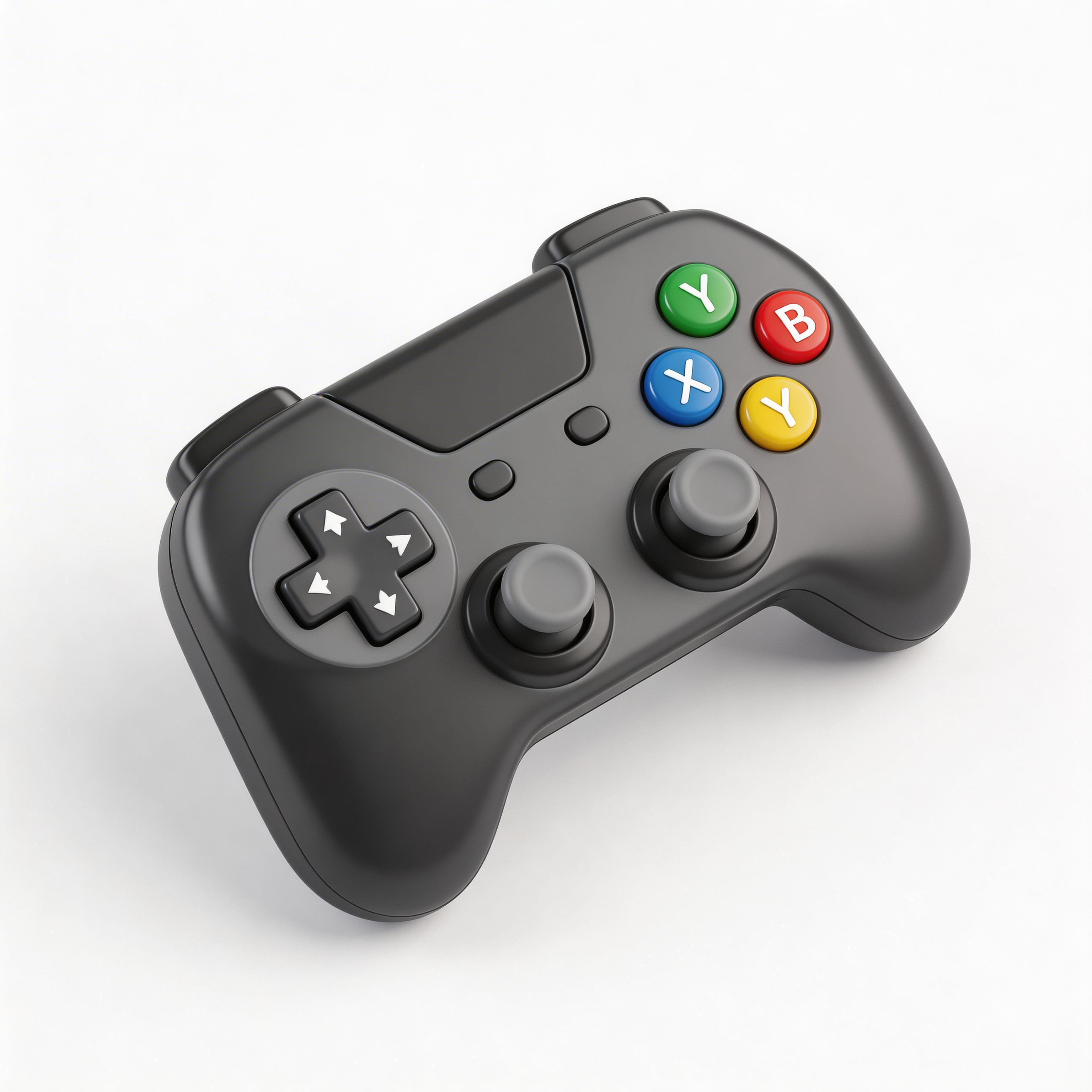
Choose from multiple styles
Flat Design
Clean, professional aesthetic
Gradient
Eye-catching modern look
Glassmorphism
Frosted glass modern UI
3D Rendered
Depth and realism
Minimalist
Simple and elegant
From idea to icon in seconds
Describe Your App
Tell the AI what your app does
Choose Style & Colors
Pick from optimized presets
Generate & Iterate
Create 2 variations instantly
Export & Ship
Download all sizes for every platform
Everything you need for perfect icons
Under 10 Seconds
Generate production-ready icons instantly
All Platforms
Export for iOS, Android, Apple Watch, and web
6 Style Presets
Flat, gradient, glassmorphism, 3D, minimalist
Category-Optimized
Designed for ios app icon generator apps
Frequently asked questions
1024x1024 pixels PNG. iOS auto-generates 180x180, 152x152, 120x120, 29x29 from this master icon.
No — iOS applies the superellipse mask automatically. Adding your own corners creates visual artifacts.
No — Apple requires fully opaque icons. Any transparency is filled with black by the system.
iOS 26 introduces Liquid Glass design effects — smooth, glass-like appearance with subtle reflections.
Use Xcode Asset Catalog or generate with IconikAI which shows device context previews across all sizes.
Ready to get started?
An iOS app icon generator turns a short description into finished icon artwork and gives you the 1024x1024 master that every Apple size is derived from. IconikAI's AI app icon generator is free to start, returns contextual variants in under 10 seconds, and edits in plain language.
Last updated: August 2026 | By IconikAI Team
iOS App Icon Generator vs iPhone Icon Generator vs Apple Icon Generator
Four different search phrases, one underlying question — but the tools they return are not the same. Here is what each one actually gets you:
| What you searched | What you actually need | Where to go |
|---|---|---|
| iOS app icon generator / ios icon generator | Original artwork created from a description | App Icon Generator |
| App icon generator ios / app icon ios generator | The same thing, phrased platform-last | This page |
| iPhone icon generator / apple icon generator / apple app icon generator | The same job, named after the device or the company | This page |
| AI ios app icon generator | An AI tool rather than an upload-and-resize utility | App Icon Generator |
| iOS icon set / asset catalog generator | Slicing one master into an .appiconset | Xcode does this from your 1024x1024 master |
The important split is between generators that create and generators that resize. Many of the free tools ranking for "ios app icon generator" are resizers: you bring a PNG you already made, they hand back a folder of sizes. That is useful, but it assumes you already solved the hard part. IconikAI creates the artwork; recent versions of Xcode slice every required size from a single 1024x1024 master.
For a broader comparison of what is available in this category, see the iOS app icon generator guide and the app icon generator guide for 2026.
iPhone App Icon Size: Every Size iOS Asks For
According to Apple's Human Interface Guidelines, iOS apps require a single master icon at 1024x1024 pixels, PNG, with zero transparency. iOS derives the rest:
| Purpose | Size | Scale | Use case |
|---|---|---|---|
| Master / App Store | 1024 x 1024 | — | Store submission and asset catalog source |
| iPhone app icon | 180 x 180 | @3x | Primary home screen icon on current iPhones |
| iPhone app icon | 120 x 120 | @2x | Home screen on @2x devices |
| iPad app icon | 167 x 167 | @2x | iPad Pro home screen |
| iPad app icon | 152 x 152 | @2x | Standard iPad home screen |
| Spotlight | 120 x 120 | @2x | Search results |
| Settings | 87 x 87 | @3x | Settings list |
| Notification | 60 x 60 | @3x | Notification banners |
Two things follow from this. First, the answer to "what is the iPhone app icon size" is genuinely 1024x1024 for what you upload and 180x180 for what renders on a modern home screen — both numbers are correct, they just answer different halves of the question. The same applies to every phrasing of it: iPhone icon size, app icon size iPhone, Apple app icon size, and Apple App Store icon size all resolve to the same pair. Second, you should not be hand-designing at each size. Ship the master, let Xcode and iOS derive the ladder, and you avoid the visual drift that creeps in when eight files are edited separately.
Android works the opposite way and needs real files at every density. If you ship to both stores, the app icon size chart puts every platform in one table, and the iOS icon size guidelines go deeper on the Apple side.
iOS 26 Liquid Glass: What It Means for Your Icon Design
Apple's iOS 26 design language, Liquid Glass, emphasises translucency and depth, moving away from the flatter look of earlier releases. If Liquid Glass is the specific look you want, the dedicated Liquid Glass icon generator is tuned for it end to end, and the glassmorphism icon generator covers the broader frosted-glass family.
Icons designed in this style typically feature:
- Soft reflections at the top-left edge, simulating light hitting frosted glass
- Depth layering with translucent overlays that suggest material thickness
- Color saturation that reads slightly muted next to older iOS gradients — premium rather than neon
- No hard outlines — edges fade or blend into the background rather than cutting sharply
This matters because the icon is the first thing a browsing user judges. An icon that reads as dated next to iOS 26-native neighbours may be easier to scroll past, whatever its ranking.
How Does iOS Apply the Superellipse Mask?
Apple applies a superellipse mask to every app icon. This is not a simple border-radius. A superellipse is a curve sitting between a circle and a square — the corners are smooth and organic rather than sharp.
What that means in practice:
- Design to the full square. Any hard corner detail will be clipped once the mask lands.
- Do not add your own rounded corners. Rounding the artwork before iOS rounds it produces a visible double-rounding artifact.
- Keep breathing room. Apple's guidance is to keep the icon's key element centered with comfortable padding rather than running detail to the very edge.
- Do not put your app name in the icon. The name renders underneath it on the home screen already.
Supply full-bleed square artwork with no transparency and no pre-applied corners, and the mask takes care of itself.
Creating iOS Icons with AI: The Fast Workflow
- Describe your app in one or two sentences — "a meditation timer with nature sounds", "a crypto portfolio tracker for beginners". No prompt engineering needed.
- Pick a style preset — Liquid Glass, gradient, minimalist, 3D rendered, flat and isometric, from 15+ curated styles.
- Choose a primary color — this sets the dominant hue.
- Generate — contextual variants come back in under 10 seconds at 2 credits per generation. Use Chat to Edit Icons to nudge color, shape or detail in plain language instead of starting over.
- Export — one-click export covers iOS sizes, Android adaptive, and web favicons from the 1024x1024 master.
- Drop it into Xcode — add the master to your asset catalog and build.
Testing Your iOS Icon Before App Store Submission
Before uploading to App Store Connect:
- Check it at 60px. Most of the time your icon is small. If the concept only reads at full size, it is too detailed.
- Check light and dark home screens. iOS renders icons against both; a design that relies on a pale background can vanish on one of them.
- Verify no transparency. Submit a flattened PNG with no alpha channel. Transparency is a frequent cause of an icon being rejected or rendered with a black fill.
- A/B test with beta testers. Send a few variations to TestFlight users and see which reads fastest.
- Compare against your category's top 10. Open the App Store, find your category, and check whether yours holds its own in that row.
Common iOS Icon Mistakes (and How to Avoid Them)
Adding rounded corners manually. The superellipse mask plus your own corners equals visible double-rounding. Design with sharp corners.
Using transparency for creative effects. Alpha channels get filled, usually with black, breaking the design. Use opaque backgrounds.
Running detail to the edge. Anything at the very corner gets clipped by the mask. Center the key element and leave padding.
Reusing the Android icon as-is. The artwork can transfer; the packaging cannot. Android needs adaptive layers and a full density ladder, iOS needs one opaque master. See the section below.
iOS and Android App Icon Generator: Shipping to Both Stores
Most teams submitting to the App Store are submitting to Google Play too, which is why "android and ios app icon generator" is a search in its own right. One master works for both — the packaging is what differs, and so does the app icon size for Android and iOS.
| iOS | Android | |
|---|---|---|
| What you upload to the store | 1024 x 1024 PNG | 512 x 512 PNG |
| Mask applied by the OS | Fixed superellipse | Manufacturer-dependent |
| Transparency | Not permitted | Foreground layer yes, background no |
| Sizes shipped in the app | Derived from the master by Xcode | Real files at every density bucket |
| Safe zone | Centered, with padding | Centered 66dp of a 108dp canvas |
Generate one 1024x1024 master, then package it twice. The Android icon generator covers the Google Play half including adaptive layers and the density ladder. For cross-platform codebases, the Flutter icon generator walks through flutter_launcher_icons, and the macOS icon generator covers .icns if you also ship to the Mac App Store.
What to Look For in an iOS Icon Generator
A checklist worth running against any tool in this category, including this one:
- Does it create, or only resize? Resizers need artwork you already have.
- Does it export a clean 1024x1024 PNG with no alpha channel? This is the file Apple actually wants.
- Does it understand current iOS design language, or is it shipping 2019 flat-design presets?
- Can you iterate without starting over? Regenerating from scratch for every small change gets expensive fast.
- What are the commercial terms? Check whether output is watermarked and whether you can ship it in a paid app.
Frequently Asked Questions
What is the iPhone app icon size? Upload a 1024x1024 PNG. On a current iPhone home screen the icon renders at 180x180 (@3x), and iOS derives that and every other size from the master you supply.
Is an iOS app icon generator the same as an Apple icon generator? In practice, yes — "apple icon generator", "iphone icon generator" and "ios icon generator" all describe a tool that produces an app icon for Apple platforms. The meaningful difference between tools is whether they create original artwork or just resize a file you bring.
Do I need a different icon for each iOS version? No. A single 1024x1024 master works across iOS versions. iOS applies its rendering at the OS level, not inside your icon file.
Can I use AI-generated icons in the App Store? As of this writing, Apple's App Store Review Guidelines contain no blanket prohibition on AI-generated artwork — verify against the current guidelines before you submit. Either way, your icon must meet the same content, originality and design rules as any other submission.
Should my icon be different on iPad? No. The same 1024x1024 master covers iPad, which renders at 167x167 on iPad Pro and 152x152 on standard iPads. Design for legibility at both.
How do I change my app icon after launch? Replace the icon in your asset catalog and submit a new build through App Store Connect. It goes through the normal review process along with the rest of the update.
How often should I refresh my app icon? There is no fixed rule. Most teams revisit it when the design language of the platform shifts — the iOS 26 Liquid Glass change is a reasonable trigger — or when the icon no longer matches the product.
Is there a free iOS icon generator? IconikAI is free to start and runs on pay-as-you-go credits at 2 credits per generation, with no subscription. The free AI icon generator comparison covers how other tools define "free", including which ones watermark output.
Create Your iOS Icon Now
Generate an App Store-ready icon in minutes with IconikAI's free AI app icon generator. Pick Liquid Glass or Glassmorphism for the current iOS look, or go straight to the Liquid Glass icon maker if that is the only style you need.
Need the rest of the listing? The app screenshot generator builds device mockups for the App Store and Google Play, iOS App Publishing handles submission for $30, and MVP App Development builds the app itself from $1,000.