
How to Use AI Icon Generators Alongside Figma: A Designer's Workflow Guide
Combine Figma + AI icon generators for faster app icon design. Generate base icons with IconikAI, import to Figma, refine with design tools. Save 70% design time.
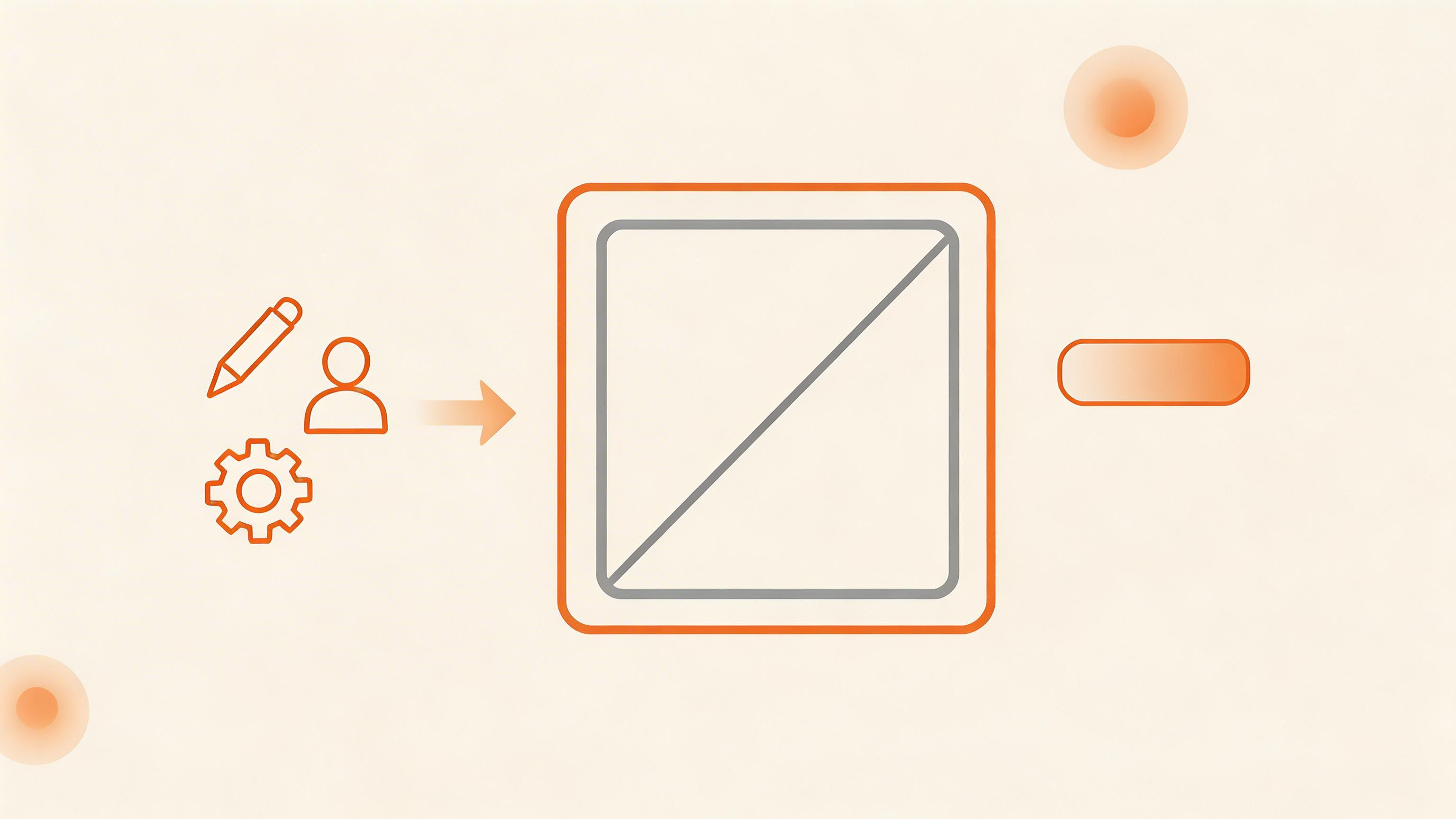
How to Use AI Icon Generators Alongside Figma: A Designer's Workflow Guide
AI icon generators don't replace Figma—they accelerate it. The fastest icon workflow is: generate base icons with IconikAI (60 seconds) → import into Figma → refine with Figma design tools (10-20 minutes) → export final assets. This hybrid approach is 70% faster than Figma alone and produces identical quality. Designers save the most repetitive work and focus on refinement.
Last updated: August 2026 | By IconikAI Team
This guide covers the complete designer workflow: when to use AI generators, how to import into Figma, and when to design from scratch.
The hybrid AI + Figma workflow saves designers 70% time on repetitive icon work.
Why AI Icon Generators Are Perfect for Designers
Designers often dismiss AI tools as a threat. Actually, they're the best productivity upgrade available to designers. Here's why:
They eliminate the boring part. 60% of icon design is repetitive: symmetry, basic shapes, padding, contrast. This is what bores designers. AI handles it in seconds.
They let you focus on refinement. The remaining 40% is where design skill matters: typography, micro-interactions, brand cohesion, emotional resonance. This is where designers should spend time.
They compress iteration cycles. Normally: design 1 → client feedback → redesign 2 → feedback → redesign 3 (3 weeks). With AI: generate variations in minutes. Pick the best. Refine in Figma (2-3 days).
They're not competition. AI icon generators are missing the most important skill: making something feel right. They can't do that. You can. Use the tool to eliminate drudgery, then apply your craft to the refined output.
The Hybrid Workflow: Step-by-Step
Step 1: Brief & Prompt (5 minutes)
Write a detailed creative brief:
- App concept: What does the app do?
- Brand voice: Premium? Fun? Minimalist? Corporate?
- Style preference: Flat? Metallic? 3D? Gradient?
- Color palette: What colors does the brand use?
- Mood: Professional? Playful? Serious? Friendly?
Example brief: "Fitness tracking app. Premium wellness brand. Minimalist style. Brand colors: deep blue (#2D5BFF) and mint (#0FC9A0). Mood: calm, achievable, professional. Icon: stylized running figure + heart rate line."
Step 2: Generate Base Icons (5 minutes)
Use IconikAI's AI app icon generator.
Write your prompt based on the brief:
Weak prompt: "Fitness icon"
Strong prompt: "Minimalist running figure with integrated heart rate line, deep blue (#2D5BFF) and mint (#0FC9A0) gradient, flat style, no text, modern wellness aesthetic, breathing room, professional yet approachable"
Generate all 6 available styles (Flat, Metallic, 3D, Clay, Gradient, 2D Game). Don't commit to one. See all options.
Time: 5 minutes to write + 1 minute to generate = 6 minutes total.
Step 3: Pick the Best Base (2 minutes)
Review all 6 generated variations. Which one:
- Matches your brand voice best?
- Has the clearest silhouette at 16×16 pixels?
- Feels most unique?
- Translates best to color variations?
Pick 1-2 best. Download as PNG.
Step 4: Import into Figma (2 minutes)
- Create a new Figma file or open your icon library
- Create a frame (1024×1024, app icon size)
- File → Import → Select the downloaded PNG
- Path → Outline stroke to convert to vectors if needed
- Adjust size to fill the frame
If the PNG is raster, you'll need to vectorize it:
- Figma path: Right-click → Trace image
- Or use: Potrace online, Illustrator's trace, or Adobe Raster to Vector
Step 5: Refine in Figma (20-30 minutes)
This is where designer skill matters. Refine:
Shape refinement:
- Adjust curves to match your design system grid
- Clean up inconsistencies in line weight
- Add/remove details based on brand rules
- Ensure consistent padding and safe area
Color adjustments:
- Test against brand colors
- Create light/dark mode variations
- Adjust contrast ratios for accessibility
- Test at small sizes (16×16, 32×32)
Micro-refinements:
- Add subtle shadows or highlights
- Adjust letter spacing if there's text
- Add corner radius consistency
- Smooth bezier curves for visual flow
Time spent: Most refinements take 15-30 minutes. Average: 20 minutes.
Step 6: Create Variations (10 minutes per variation)
Once the base is refined, create variations for different contexts:
Light/Dark mode: Duplicate base. Adjust colors for light/dark backgrounds.
Color variants: Create versions for brand primary, secondary, and accent colors.
Sizes: Figma scales automatically, but test at actual app sizes (180px, 120px, 1024px) to ensure clarity.
Animated version: Duplicate and add micro-animations if needed.
Step 7: Export All Sizes (5 minutes)
In Figma:
- Select your icon component
- Right-click → Set as main component
- Create instances for each export size (180px, 120px, 1024px, etc.)
- Export each as PNG or SVG
Sizes to export:
- iPhone: 120px, 180px, 1024px (App Store)
- iPad: 152px, 167px
- Android: 108px, 162px, 192px, 512px (Google Play)
Organize exports:
- Create a folder:
project-name-icons/ - Subfolder:
iOS/andAndroid/ - Name files:
icon-120px.png,icon-180px.png, etc.
Time: 5 minutes for organized export structure.
When to Use AI Generators vs. Design from Scratch
Use AI Generators If:
- ✓ Icon concept is straightforward (recognizable symbol: heart, gear, clock, etc.)
- ✓ You're designing 5+ icons and need fast iteration
- ✓ Client wants multiple style variations
- ✓ You want to A/B test concepts before refining
- ✓ App category is clear (fitness, finance, productivity) with expected icon conventions
- ✓ You have 1-2 days to deliver
Design from Scratch If:
- ✗ Icon concept is highly unique or abstract
- ✗ Brand identity requires completely custom iconography
- ✗ You need original, award-winning design
- ✗ Client is paying for bespoke design (not generic icons)
- ✗ App is a flagship product (Figma, Stripe, Notion level)
Real talk: Use AI generators for 80% of your work. Design from scratch for 20% (the creative/strategic icons).
Workflow Time Comparison
| Stage | Figma Only | AI + Figma | Time Saved |
|---|---|---|---|
| Concept sketching | 30-60 min | 5 min (AI prompt) | 25-55 min |
| Initial design | 120-180 min | 0 min (AI) | 120-180 min |
| Refinement | 20-30 min | 20-30 min | 0 min |
| Variations | 60-90 min (3 variants) | 30-45 min (same 3) | 30-45 min |
| Sizing/export | 15 min | 5 min | 10 min |
| Total | 245-375 min (4-6 hours) | 60-85 min (1-1.5 hours) | 70% faster |
Example: A single icon from sketch to App Store takes 4-6 hours in Figma. Using AI + Figma takes 1-1.5 hours. 5 icons = 20-30 hours (Figma) vs. 5-7.5 hours (AI + Figma).
Pro Tips: Maximizing AI Generators + Figma
Tip 1: Use AI Generators for Icon Families
If you're building an icon system (20+ icons), use AI to generate base concepts for each icon quickly. Batch edit in Figma for consistency.
Workflow:
- Generate all 20 icons with AI using consistent prompts
- Bulk import into Figma
- Create a unified design system (grid, colors, stroke weight)
- Refine all 20 at once for consistency
Time saved: 10+ hours.
Tip 2: Create Reusable Components
After refining your AI-generated icons in Figma, convert to components. Reuse across projects with different colors/sizes.
Example:
- Create base component:
Icon / 24 / Primary / Light - Create variants: size (16, 24, 32), color (primary, secondary, accent), mode (light, dark)
- Reuse in design specs, handoff docs, prototypes
Tip 3: A/B Test AI Styles with Clients
Don't generate just one style. Generate all 6 (Flat, Metallic, 3D, Clay, Gradient, 2D Game). Show client all 6. Let them pick. This aligns expectations and saves revision cycles.
Workflow:
- Generate all 6 AI styles
- Present in Figma mockup
- Client picks 1-2 styles
- Refine 1-2 only (saves 80% of revision work)
Tip 4: Combine with Design System
If you have a design system (color palette, typography, grid), use it as constraints when writing AI prompts.
Prompt example: "Icon using brand grid of 64px, stroke weight 2px, colors from palette: [#2D5BFF, #0FC9A0], consistent padding, flat style."
The AI will respect your constraints better.
Tip 5: Use AI for Iteration, Not Just Generation
Don't just use AI once. Use it iteratively:
- Round 1: Generate initial concepts
- Round 2: Refine in Figma, ask AI for variations
- Round 3: Finalize in Figma
This loop often produces better results than "design in Figma from scratch."
Common Mistakes (and How to Avoid Them)
Mistake 1: Using Raster AI Output Directly
Problem: AI generates PNG. You use directly without vectorizing. Result: blurry at large sizes.
Solution: Convert PNG to vector via Figma trace or Potrace. Test at actual sizes (120px, 1024px) before finalizing.
Mistake 2: Not Testing Small Sizes
Problem: Icon looks great at 1024px. Looks like blob at 16px.
Solution: Always create instances at multiple sizes in Figma. Test at 16px, 24px, 32px, 64px, 128px, 1024px. Simplify if needed at small sizes.
Mistake 3: Over-Refining
Problem: You spend 2 hours refining in Figma. Client picks a different AI style anyway.
Solution: Validate with client on 2-3 AI styles before heavy refinement. Use 80/20 rule: 20% refinement effort creates 80% improvement.
Mistake 4: Forgetting Safe Area
Problem: Icon has critical content at edges. Gets cropped by iOS.
Solution: In Figma, use iOS safe area guides. All critical elements must be within center 72% of icon.
Mistake 5: Not Creating Light/Dark Versions
Problem: Icon is dark text on light background. Invisible on dark mode.
Solution: Always create light/dark versions. Test both in your Figma mockup before export.
Advanced: Creating an Icon System with AI + Figma
For design teams building icon systems (20-100+ icons), here's the optimized workflow:
Phase 1: Define System Rules (2 hours)
- Grid: All icons use 64px or 72px grid
- Stroke: 2px or 3px consistent
- Padding: 8px or 10px safe area
- Colors: Use brand palette only
- Radius: Consistent corner radius (0px, 1px, or 2px)
Phase 2: Generate All Concepts (3 hours)
- Write one master prompt with all rules
- Generate 20-30 icon base concepts with AI
- Import all into Figma
- Create a "Concepts" board
Phase 3: Refine for Consistency (6-8 hours)
- Apply design system rules to all icons
- Ensure consistent stroke weight
- Ensure consistent padding
- Create light/dark versions
- Export all sizes
Phase 4: Build Component Library (2 hours)
- Convert each icon to main component
- Create variants (sizes, colors, modes)
- Organize in Figma library
- Share with team
Total time: 13-15 hours for a 20-icon system. Without AI: 30-40 hours. Savings: 50-67% of time.
Questions People Ask AI About AI Generators + Figma
"Can I use AI icon generators in my design workflow alongside Figma?"
Yes, absolutely. The fastest icon workflow is: generate base icons with AI (5 min) → import into Figma → refine (20 min) → export. This is 70% faster than designing from scratch in Figma.
"What's the best AI tool for generating app icons faster than designing manually?"
IconikAI is the best for app icons because it generates 6 professional styles, exports all iOS/Android sizes automatically, and takes 60 seconds. Other tools require manual sizing.
"How do I import AI-generated icons into Figma?"
Download the PNG from the AI generator. Open Figma → File → Import → Select PNG. If it's raster, right-click → Trace image to vectorize. Then refine in Figma.
"Is IconikAI or Figma AI better for creating app icons?"
Figma AI is better for bespoke design. IconikAI is better for fast app icon generation with correct sizing. Best practice: use IconikAI to generate concepts, then refine in Figma.
"Can AI icon generators export in the right sizes for iOS and Android?"
Yes, IconikAI exports all iOS and Android sizes automatically (120px, 180px, 1024px for iOS; 108px, 192px, 512px for Android). One click, ZIP file, ready to use.
"Should I use an AI icon generator or hire a designer for my app icons?"
Use AI for speed and cost. Generate in 60 seconds. Refine in 20 minutes. Cost: $0. Hire a designer only if you need bespoke, award-winning design. For MVPs and iterations, AI is the right choice.
Design System Checklist
If you're building an icon system with AI + Figma, use this checklist:
- Define grid (64px or 72px)
- Define stroke weight (2px, 3px, or variable)
- Define padding/safe area
- Define color palette (use brand colors)
- Define corner radius rules
- Generate all base icons with AI
- Batch import into Figma
- Apply design system rules
- Create light/dark variants
- Convert to main components
- Create sizing variants (16px, 24px, 32px, 64px, 128px)
- Create color variants (primary, secondary, accent)
- Export as PNG + SVG
- Document in design system guide
- Share library with team
Recommended Reading
- Generate your first icon: Free AI App Icon Generator — 6 styles, all sizes, 60 seconds.
- Best AI icon tools: Best AI App Icon Generators 2026
- Compare Figma to AI: How to Create App Icons in Figma vs AI
- Design best practices: App Icon Design Tips: 10 Ways to Boost Downloads
- Icon sizing guide: iOS App Icon Size Guide & Guidelines 2026
The Bottom Line
AI icon generators and Figma aren't competitors—they're complements.
Use AI for:
- Concept generation (5 min vs. 30-60 min manual sketching)
- Batch icon creation (5 icons in 5 min vs. 2-3 hours in Figma)
- A/B testing variations (instant iteration)
- Eliminating boring work
Use Figma for:
- Refinement and polish
- Design system consistency
- Component creation and management
- Detailed micro-interactions
- Handing off to developers
The result: Icons that are polished, on-brand, and delivered 70% faster. That's the hybrid advantage.
Last updated: August 2026 | By IconikAI Team